
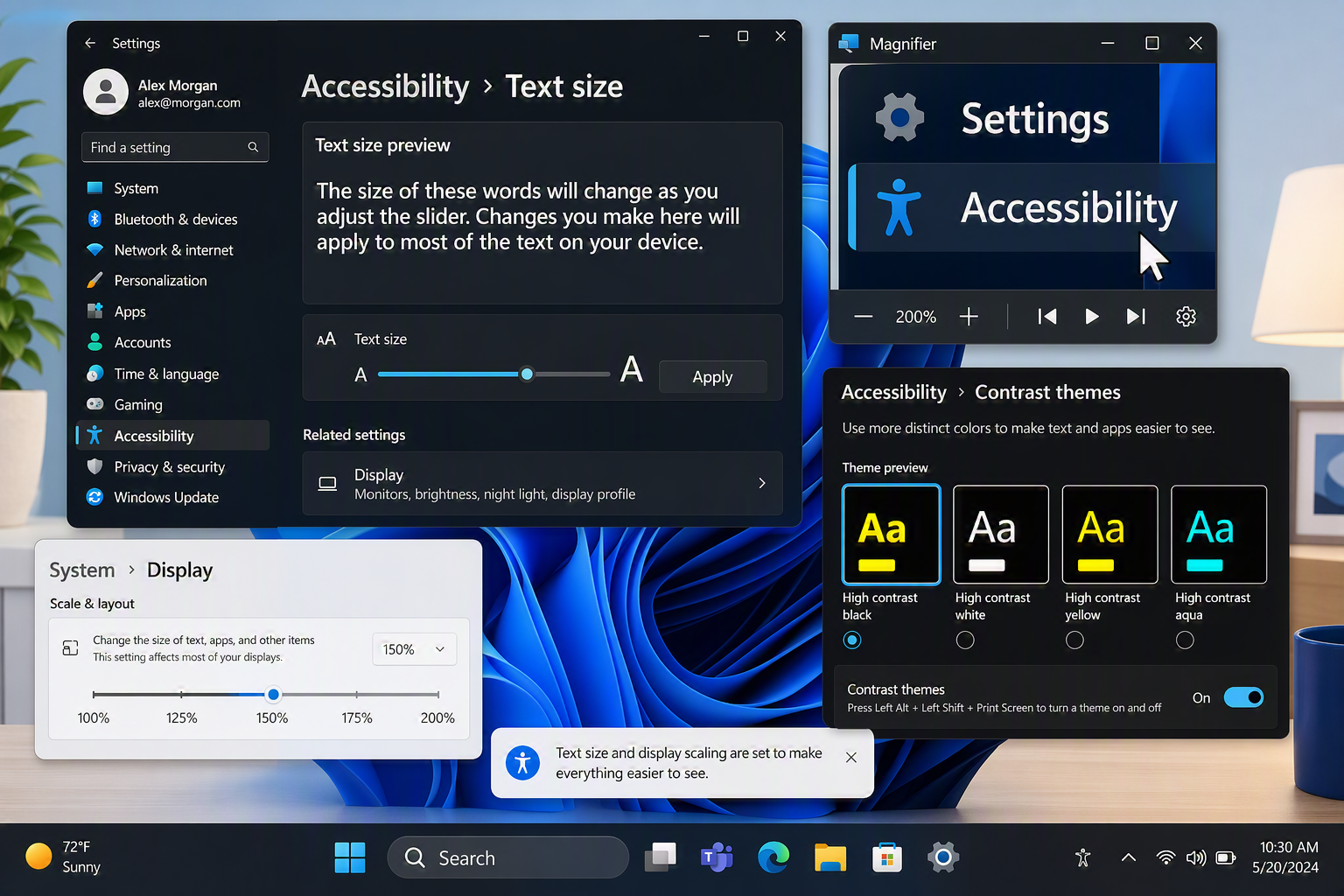
Windows 11 includes several built‑in accessibility and display tools designed to reduce eye strain and make on‑screen text clearer. Follow the steps below to adjust text size, contrast, colour filters, and other visual settings.
Increase Text Size
Larger text reduces eye strain and improves readability across apps.
To increase the text size go to Settings → Accessibility → Text size
Drag the Text size slider to increase or decrease text
Click Apply to preview the change across Windows
Use Display Scaling
Scaling enlarges everything on screen, not just text.
Settings → System → Display → Scale
Choose a preset (e.g., 125%, 150%) for larger interface elements
Recommended if icons, menus, and apps feel too small
Turn On ClearType
ClearType sharpens text and improves clarity on modern displays.
Press Win + S → type ClearType → select Adjust ClearType text
Tick Turn on ClearType
Follow the on‑screen steps to choose the clearest text samples
Enable High Contrast or Contrast Themes
Contrast themes improve visibility for users sensitive to low contrast.
Go to Settings → Accessibility → Contrast themes
Choose a theme such as Aquatic, Desert, or Night sky
Click Apply to enable
Use Colour Filters (Optional)
Colour filters help with colour blindness or visual fatigue.
Go to Settings → Accessibility → Colour filters
Toggle Colour filters on
Choose filters like Greyscale, Inverted, or Deuteranopia
Adjust Brightness and Night Light
Reducing blue light and adjusting brightness can ease eye strain.
Go to Settings → System → Display
Adjust Brightness to a comfortable level
Turn on Night light to reduce blue light in the evening
Click Night light settings to schedule it
Use Magnifier for Zooming
Magnifier provides temporary or continuous zoom for small text.
Go to Settings → Accessibility → Magnifier
Toggle Magnifier on
Use Win + Plus (+) to zoom in and Win + Minus (-) to zoom out
Choose a view: Full screen, Lens, or Docked
Enable Reading Mode in Microsoft Edge
Immersive Reader removes clutter and improves readability on websites.
Open Edge → Click the book icon in the address bar
Adjust text spacing, column width, and background colours
Use Read aloud for spoken content
Summary
By adjusting text size, scaling, contrast, colour filters, and using tools like ClearType and Magnifier, you can make Windows 11 significantly easier on the eyes. These settings are especially helpful for long workdays, accessibility needs, or simply improving comfort.